

Table of Contents
- Introduction
- What Is Productivity Software?
- The Main Kinds of Productivity Software
- How to Pick the Right One
- Mistakes That Waste Your Time
- A Simple Starter Setup
- What About AI Features?
- FAQs
- Final Thoughts
Introduction
Look at your laptop for a second. There’s probably a calendar you ignore, two note apps that do the same job, a to-do list nobody has touched since spring and a downloads folder you’re afraid to open. Every one of those apps was installed with good intentions. Together they make work feel heavier than it should.
That’s the odd thing about productivity software. It’s supposed to hand time back to you, yet a messy setup can eat more than it saves. A good one fades into the background. Tasks sit where you expect them, files open when you need them and nothing important lives only in someone’s head.
Some groundwork has to come first, though. Reliable backup software keeps one dead hard drive from wiping out a month of work, and a decent PDF editor saves you from the print, sign and scan routine. Sort those two out and everything else gets easier.
Here’s what this post covers: what these tools are, which types deserve your attention, how to choose without burning money, and the mistakes that sink most setups.
What Is Productivity Software?
It’s any app that helps you plan, organize or finish work with less effort. That covers a basic checklist on your phone and a full project platform used by a hundred people. Some run in a browser, some install on your computer and plenty do both.
What they share is simple. Each one takes over a job that’s repetitive, easy to forget or confusing, so your attention goes to work that needs a human.
Why People Care About It Now
Work is scattered. Instructions arrive by email, questions come through chat, files sit in three different folders and decisions happen on calls nobody wrote down. Without some structure, things slip.
A good toolset gives you one place to see what’s due, who owns it and which version of a file is the latest. That means fewer missed deadlines, less repeated work and far less time hunting for things you know you saved somewhere.
The Main Kinds of Productivity Software
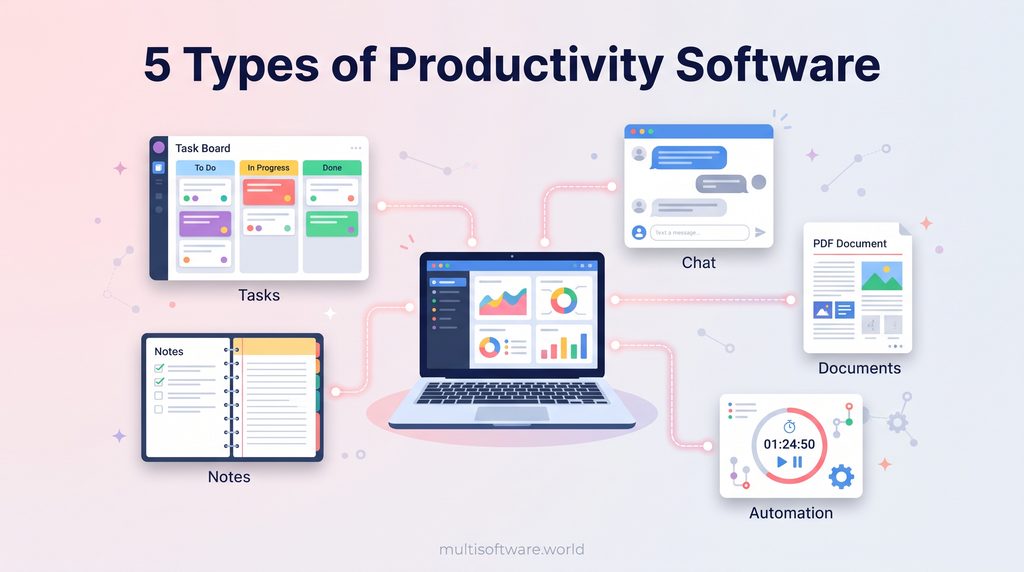
No single app does everything well, and the ones that claim to usually do a lot of things badly. Most people end up combining a few categories.
Task and Project Management
These turn “I should do that” into a visible plan. You add tasks, give them owners and dates, then move them across a board or list as work progresses. If you work alone, a simple task manager is plenty. Teams usually want comments, deadlines that connect to each other and a way to see who’s overloaded.
Notes and Knowledge Apps
Notes are where ideas, meeting recaps and research end up. The better apps let you link one note to another and search everything instantly. Over a year or two, that stops being a pile of text and becomes something closer to a personal library.
Chat and Collaboration Platforms
Team chat and video tools keep conversations in one spot instead of buried in inboxes. The aim isn’t more messages. It’s fewer, clearer ones. Threads, channels and status settings help people reply when it matters and stay quiet when it doesn’t.
Document, PDF and File Tools
Contracts, invoices, proposals and reports mostly move around as documents, and PDFs are the usual format. Being able to edit, sign, merge or comment on them without awkward workarounds saves more time than you’d expect. Cloud storage belongs here too, as long as someone has set up proper backups.
Time Tracking and Automation
Time trackers show where your hours really go, which is often not where you think. Automation tools connect your apps so small chores run themselves, like saving an email attachment to the right folder or sending a reminder the day before a deadline.
How to Pick the Right One
Choosing by popularity is the quickest route to software you quit after two weeks. Start from your own day instead.
Begin With the Problem
Before comparing features, write down what’s actually slowing you down. Maybe you forget follow-ups. Maybe files get lost. Maybe every project needs a status meeting just to find out what’s happening. Each of those points toward a specific kind of tool, and knowing the problem first keeps you from buying a shiny app that solves something you don’t have.
Questions Worth Asking First
- What single task am I trying to make easier?
- Will the people around me really open this every day?
- Does it replace something I already pay for?
- Could I export my data easily if I wanted to leave?
If you’re still exploring, the multisoftware.world home page is a good place to browse software topics and see what’s covered across categories.
Check Integrations and Ease of Use
An app that doesn’t talk to your calendar, email or storage creates manual work instead of removing it, so look at the integrations list early. Then test the interface. If you can’t work out the basics in your first session, your team probably won’t stick with it either. Free trials exist for this reason, so use them properly. Run a real project through the tool for a week before you commit.
Take Security and Privacy Seriously
These tools hold client details, financial files and internal plans. Find out where your data is stored, how it’s encrypted and who can see it. It’s also smart to read a site’s privacy policy before downloading or signing up for anything, and to hold every tool you adopt to the same standard.
Mistakes That Waste Your Time
Even great software fails when it’s used badly. These come up again and again:
- Too many apps. Ten tools with overlapping features cause confusion. Four or five well-chosen ones beat that every time.
- Nobody owns it. If no one is responsible for setting up and tidying a tool, it slowly turns into clutter.
- Skipping onboarding. A twenty-minute walkthrough helps people find features they’d otherwise never touch.
- Switching constantly. Every move to a new tool resets everyone’s learning curve. Change only when there’s a real reason.
- Forgetting backups. The cleanest system in the world means nothing if one failed drive takes it all.
A Simple Starter Setup
You don’t need anything fancy. For most freelancers and small teams, this covers it:
- One task manager as the single place for what needs doing
- One notes app for ideas, processes and meeting records
- One chat tool for everyday conversation
- One set of document and PDF tools for contracts and approvals
- One backup solution running quietly in the background
Stick with it for a month before changing anything. Then look at what’s used and what isn’t, and cut the dead weight. A quick review every few months is enough to keep things honest. Ask what’s saving time, what people ignore and what could be automated. Small tweaks made regularly work better than big overhauls made once a year.
What About AI Features?
Most productivity tools now include some AI. It can summarize long threads, draft a first version of a document, suggest task priorities or turn a meeting recording into action items. Used sensibly, it trims the boring parts of work.
The catch is accuracy. AI can get details wrong with total confidence, so anything that matters still needs your eyes on it. Think of it as a quick assistant, not someone to hand your judgment over to.
Tools are also getting better at sharing data with each other, so a task can link to a document, a chat and a calendar event without copying anything by hand. Expect that to keep improving.
FAQs
What’s the best productivity software for beginners?
Start with a simple task manager and a notes app. Both are easy to learn, and many have free plans. Add more only when you notice a real gap.
Is free software good enough?
For individuals and small teams, often yes. Free plans usually cover the core features. Paid plans start to make sense when you need advanced automation, more storage, admin controls or support.
How many tools should I use?
Fewer than you’d guess. Four or five tools with clear jobs is plenty for most people. If two apps do the same thing, keep the one you actually open.
Can productivity software improve focus?
It helps by cutting clutter and small decisions, but it can’t replace good habits. Plan your day, batch your messages and protect a few hours for deep work.
How do I keep my data safe?
Use strong, unique passwords with two-factor login, check sharing permissions now and then and keep automatic backups running. Choose providers that are open about how they store and protect data.
Final Thoughts
Good productivity software isn’t about having the most apps. It’s about picking a few that fit how you already work, keeping your files protected and checking in on the setup now and then. Start with the problem, test before you commit and resist the urge to collect every new release.
If you want to keep reading, browse the software guides and tutorials section or head back to the multisoftware.world homepage for more practical software advice.